> ## Documentation Index
> Fetch the complete documentation index at: https://docs.drdroid.io/llms.txt
> Use this file to discover all available pages before exploring further.
# AWS Cloudwatch
## Using keys
1. **Prerequisites**: Have your AWS credentials ready, including [access key and secret access key](https://docs.aws.amazon.com/IAM/latest/UserGuide/id_credentials_access-keys.html), with permissions to access.
2. **Configuring DrDroid**: In the DrDroid platform, navigate to Integrations > CloudWatch. Enter your AWS access key ID, secret access key, and specify the region your CloudWatch logs are stored in.
3. **Testing the Integration**: Test the integration.
**Note:** For security reasons, some teams prefer to create a new user with access attached to these permissions.
### Steps to create a new user:
#### Step 1: Create a new user in your CloudWatch
Go to this [link](https://us-east-1.console.aws.amazon.com/iam/home#/users) within your AWS account IAM and create a new user.
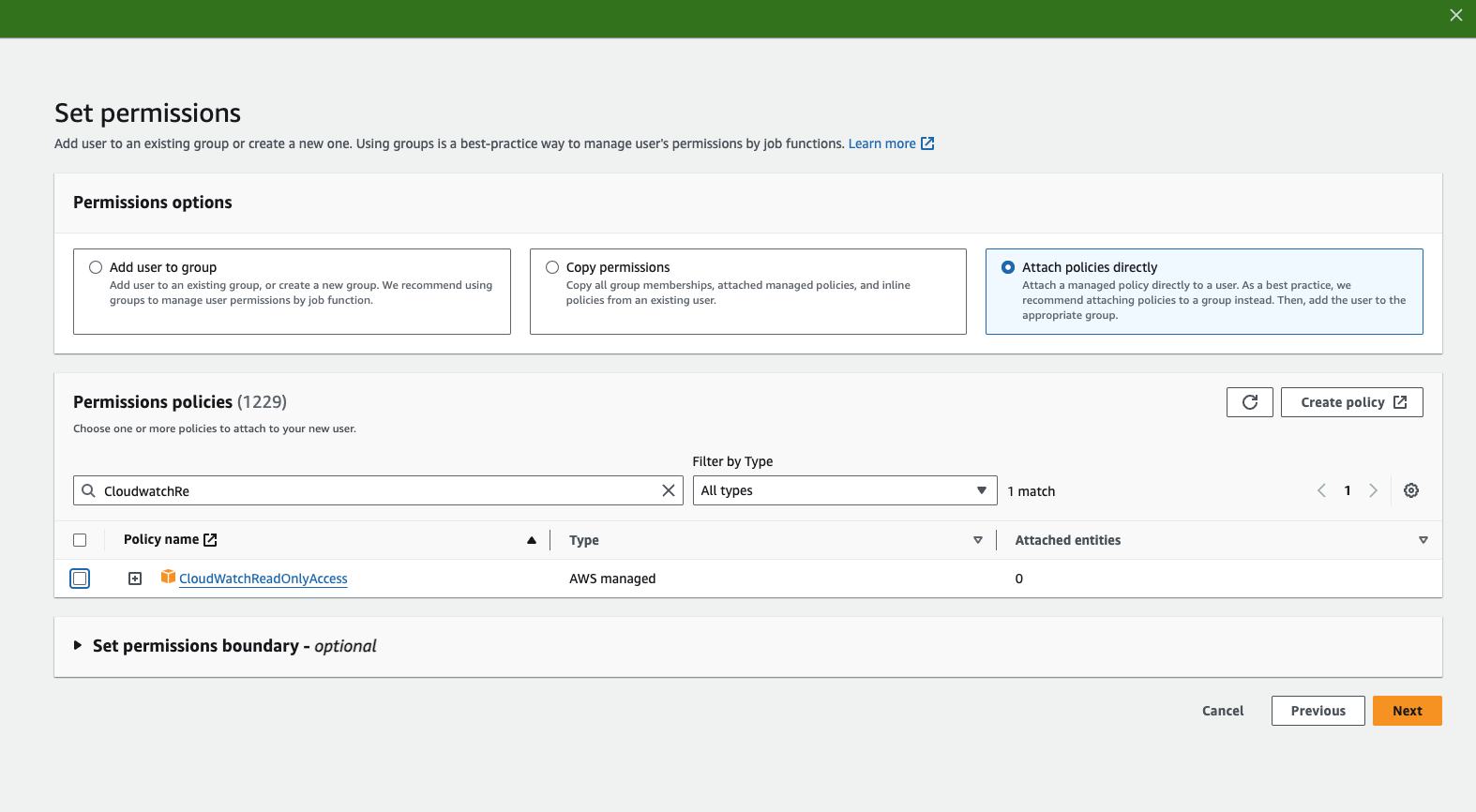
#### Step 2: Attach one policy of **CloudWatchReadOnlyAccess** to the user.
You don't need to add any group to the user.
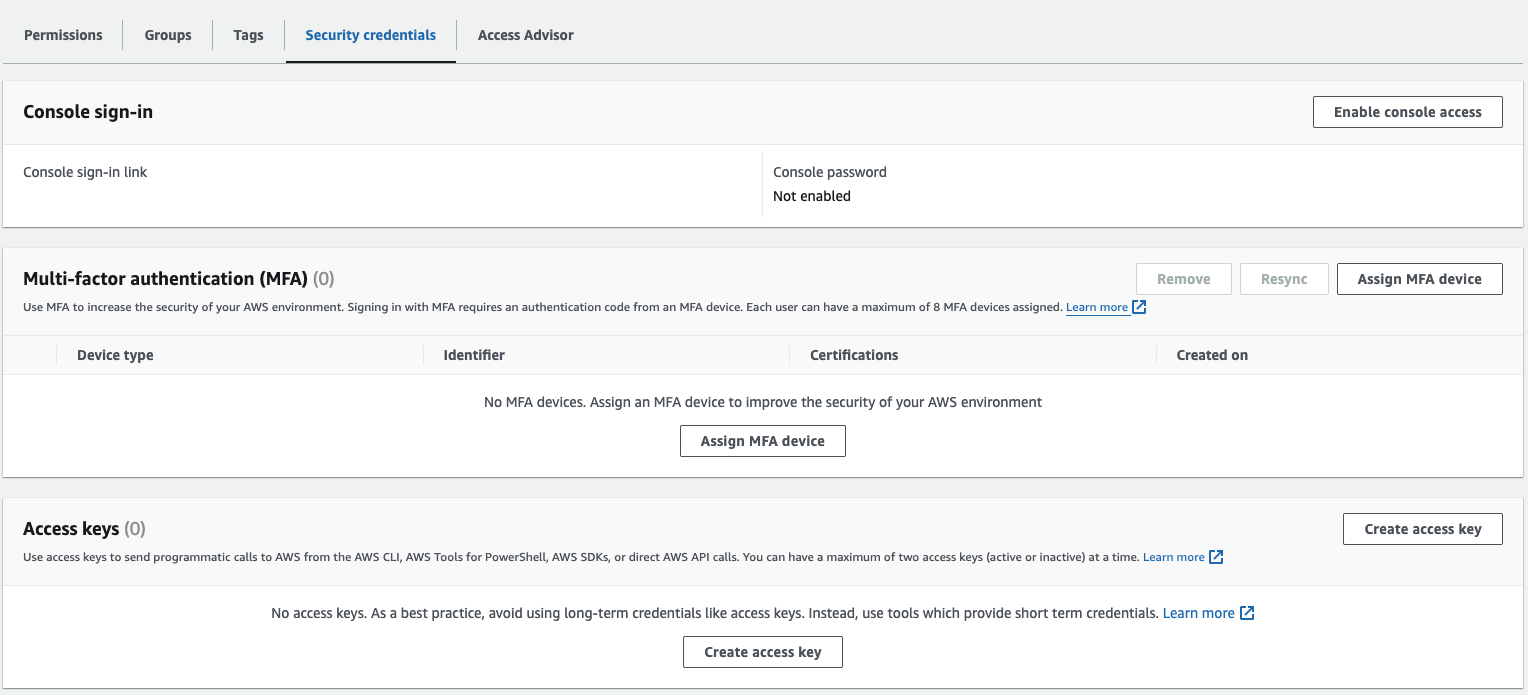
 #### Step 3: Once the user is created, create an access key by going to "Security Credentials".
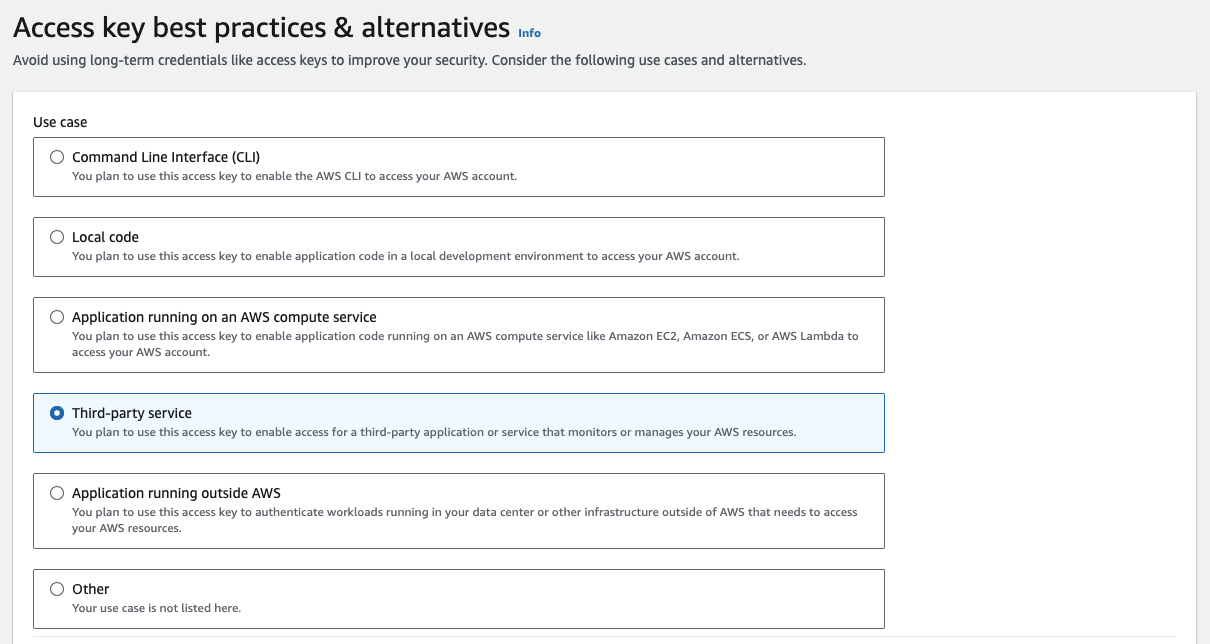
 #### Step 4: Select "Third-party service" or "Application running on an AWS compute service" while creating the key.
 #### Step 5: Copy paste the access key and secret key in [Integrations page](https://aiops.drdroid.io/integrations/).
***
## Using [AssumeRole](https://docs.aws.amazon.com/STS/latest/APIReference/API_AssumeRole.html)
You can set up AssumeRole **self‑serve**. Everything you need is shown on the CloudWatch integration page in DrDroid.
### Step 1 – Get Doctor Droid AWS details from the UI
1. In DrDroid, go to **Integrations → CloudWatch**.
2. In the **AssumeRole** section, click **“Show AWS details”**.
3. Copy:
* **Doctor Droid AWS Account ID**
* **Doctor Droid AWS Role ARN**
> For security, we never publish these values in docs. Always copy them directly from the Integrations page.
### Step 2 – Generate External ID and create the IAM role
1. **Generate External ID in DrDroid:** In DrDroid, go to **Integrations → CloudWatch**. In the **External ID** field click **Generate**, then copy the value (you will add it in the AWS console and again when saving the connector).
2. **Create the role in AWS:** In your AWS console, go to **IAM → Roles → Create role**.
3. Choose **Custom trust policy** and use the following (replace `` with the Doctor Droid role ARN from Step 1, and `` with the External ID you generated above):
```json theme={null}
{
"Version": "2012-10-17",
"Statement": [
{
"Effect": "Allow",
"Principal": {
"AWS": ""
},
"Action": "sts:AssumeRole",
"Condition": {
"StringEquals": {
"sts:ExternalId": ""
}
}
}
]
}
```
4. When you name the role, **you must use a name that starts with `drd-`** for Doctor Droid to work with the default IAM policy. For example:
```text theme={null}
drd-cloudwatch-reader
```
5. In DrDroid, enter the **Assumed Role ARN** of the role you created, select the **AWS Region**, and if you used an External ID in the trust policy, enter the same value in **External ID** (or use **Generate** to create one and then update the role’s trust policy to match). Click **Test** to verify, then save the connector.
## Permissions
To allow Droid Agent to be able to run comprehensive investigation, we recommend assigning this custom policy to the user/role which is added for the connector. This is a read-only policy
```json theme={null}
{
"Version": "2012-10-17",
"Statement": [
{
"Sid": "EC2ReadOnly",
"Effect": "Allow",
"Action": [
"ec2:Describe*",
"ec2:Get*"
],
"Resource": "*"
},
{
"Sid": "AutoScalingReadOnly",
"Effect": "Allow",
"Action": [
"autoscaling:Describe*"
],
"Resource": "*"
},
{
"Sid": "LoadBalancerReadOnly",
"Effect": "Allow",
"Action": [
"elasticloadbalancing:Describe*"
],
"Resource": "*"
},
{
"Sid": "EKSReadOnly",
"Effect": "Allow",
"Action": [
"eks:Describe*",
"eks:List*"
],
"Resource": "*"
},
{
"Sid": "ECSReadOnly",
"Effect": "Allow",
"Action": [
"ecs:Describe*",
"ecs:List*"
],
"Resource": "*"
},
{
"Sid": "LambdaReadOnly",
"Effect": "Allow",
"Action": [
"lambda:Get*",
"lambda:List*"
],
"Resource": "*"
},
{
"Sid": "CloudWatchMetricsReadOnly",
"Effect": "Allow",
"Action": [
"cloudwatch:GetMetricData",
"cloudwatch:GetMetricStatistics",
"cloudwatch:ListMetrics",
"cloudwatch:Get*",
"cloudwatch:Describe*"
],
"Resource": "*"
},
{
"Sid": "CloudWatchLogsReadOnly",
"Effect": "Allow",
"Action": [
"logs:Get*",
"logs:List*",
"logs:Describe*",
"logs:StartQuery",
"logs:StopQuery",
"logs:GetQueryResults",
"logs:FilterLogEvents"
],
"Resource": "*"
},
{
"Sid": "XRayReadOnly",
"Effect": "Allow",
"Action": [
"xray:Get*",
"xray:BatchGet*"
],
"Resource": "*"
},
{
"Sid": "RDSReadOnly",
"Effect": "Allow",
"Action": [
"rds:Describe*",
"rds:ListTagsForResource"
],
"Resource": "*"
},
{
"Sid": "ElastiCacheReadOnly",
"Effect": "Allow",
"Action": [
"elasticache:Describe*",
"elasticache:ListTagsForResource"
],
"Resource": "*"
},
{
"Sid": "KafkaMSKReadOnly",
"Effect": "Allow",
"Action": [
"kafka:Describe*",
"kafka:List*",
"kafka:Get*"
],
"Resource": "*"
},
{
"Sid": "DynamoDBReadOnly",
"Effect": "Allow",
"Action": [
"dynamodb:Describe*",
"dynamodb:List*"
],
"Resource": "*"
},
{
"Sid": "S3ReadOnly",
"Effect": "Allow",
"Action": [
"s3:Get*",
"s3:List*"
],
"Resource": "*"
},
{
"Sid": "ECRReadOnly",
"Effect": "Allow",
"Action": [
"ecr:Describe*",
"ecr:Get*",
"ecr:List*",
"ecr:BatchGetImage"
],
"Resource": "*"
},
{
"Sid": "WAFReadOnly",
"Effect": "Allow",
"Action": [
"waf:Get*",
"waf:List*",
"wafv2:Get*",
"wafv2:List*"
],
"Resource": "*"
},
{
"Sid": "IAMReadOnly",
"Effect": "Allow",
"Action": [
"iam:Get*",
"iam:List*"
],
"Resource": "*"
},
{
"Sid": "CloudTrailReadOnly",
"Effect": "Allow",
"Action": [
"cloudtrail:Get*",
"cloudtrail:Describe*",
"cloudtrail:List*",
"cloudtrail:LookupEvents"
],
"Resource": "*"
},
{
"Sid": "EventBridgeReadOnly",
"Effect": "Allow",
"Action": [
"events:Describe*",
"events:List*"
],
"Resource": "*"
},
{
"Sid": "StepFunctionsReadOnly",
"Effect": "Allow",
"Action": [
"states:Describe*",
"states:List*",
"states:GetExecutionHistory"
],
"Resource": "*"
},
{
"Sid": "SecretsMetadataOnly",
"Effect": "Allow",
"Action": [
"secretsmanager:DescribeSecret",
"secretsmanager:ListSecrets"
],
"Resource": "*"
},
{
"Sid": "SSMParameterMetadata",
"Effect": "Allow",
"Action": [
"ssm:DescribeParameters",
"ssm:ListTagsForResource"
],
"Resource": "*"
},
{
"Sid": "TaggingReadOnly",
"Effect": "Allow",
"Action": [
"tag:GetResources",
"tag:GetTagKeys",
"tag:GetTagValues"
],
"Resource": "*"
},
{
"Sid": "CostExplorerReadOnly",
"Effect": "Allow",
"Action": [
"ce:GetCostAndUsage",
"ce:GetCostForecast",
"ce:GetReservationUtilization",
"ce:GetRightsizingRecommendation"
],
"Resource": "*"
},
{
"Sid": "ResourceExplorerSearch",
"Effect": "Allow",
"Action": [
"resource-explorer-2:Search"
],
"Resource": "*"
}
]
}
```
#### Step 5: Copy paste the access key and secret key in [Integrations page](https://aiops.drdroid.io/integrations/).
***
## Using [AssumeRole](https://docs.aws.amazon.com/STS/latest/APIReference/API_AssumeRole.html)
You can set up AssumeRole **self‑serve**. Everything you need is shown on the CloudWatch integration page in DrDroid.
### Step 1 – Get Doctor Droid AWS details from the UI
1. In DrDroid, go to **Integrations → CloudWatch**.
2. In the **AssumeRole** section, click **“Show AWS details”**.
3. Copy:
* **Doctor Droid AWS Account ID**
* **Doctor Droid AWS Role ARN**
> For security, we never publish these values in docs. Always copy them directly from the Integrations page.
### Step 2 – Generate External ID and create the IAM role
1. **Generate External ID in DrDroid:** In DrDroid, go to **Integrations → CloudWatch**. In the **External ID** field click **Generate**, then copy the value (you will add it in the AWS console and again when saving the connector).
2. **Create the role in AWS:** In your AWS console, go to **IAM → Roles → Create role**.
3. Choose **Custom trust policy** and use the following (replace `` with the Doctor Droid role ARN from Step 1, and `` with the External ID you generated above):
```json theme={null}
{
"Version": "2012-10-17",
"Statement": [
{
"Effect": "Allow",
"Principal": {
"AWS": ""
},
"Action": "sts:AssumeRole",
"Condition": {
"StringEquals": {
"sts:ExternalId": ""
}
}
}
]
}
```
4. When you name the role, **you must use a name that starts with `drd-`** for Doctor Droid to work with the default IAM policy. For example:
```text theme={null}
drd-cloudwatch-reader
```
5. In DrDroid, enter the **Assumed Role ARN** of the role you created, select the **AWS Region**, and if you used an External ID in the trust policy, enter the same value in **External ID** (or use **Generate** to create one and then update the role’s trust policy to match). Click **Test** to verify, then save the connector.
## Permissions
To allow Droid Agent to be able to run comprehensive investigation, we recommend assigning this custom policy to the user/role which is added for the connector. This is a read-only policy
```json theme={null}
{
"Version": "2012-10-17",
"Statement": [
{
"Sid": "EC2ReadOnly",
"Effect": "Allow",
"Action": [
"ec2:Describe*",
"ec2:Get*"
],
"Resource": "*"
},
{
"Sid": "AutoScalingReadOnly",
"Effect": "Allow",
"Action": [
"autoscaling:Describe*"
],
"Resource": "*"
},
{
"Sid": "LoadBalancerReadOnly",
"Effect": "Allow",
"Action": [
"elasticloadbalancing:Describe*"
],
"Resource": "*"
},
{
"Sid": "EKSReadOnly",
"Effect": "Allow",
"Action": [
"eks:Describe*",
"eks:List*"
],
"Resource": "*"
},
{
"Sid": "ECSReadOnly",
"Effect": "Allow",
"Action": [
"ecs:Describe*",
"ecs:List*"
],
"Resource": "*"
},
{
"Sid": "LambdaReadOnly",
"Effect": "Allow",
"Action": [
"lambda:Get*",
"lambda:List*"
],
"Resource": "*"
},
{
"Sid": "CloudWatchMetricsReadOnly",
"Effect": "Allow",
"Action": [
"cloudwatch:GetMetricData",
"cloudwatch:GetMetricStatistics",
"cloudwatch:ListMetrics",
"cloudwatch:Get*",
"cloudwatch:Describe*"
],
"Resource": "*"
},
{
"Sid": "CloudWatchLogsReadOnly",
"Effect": "Allow",
"Action": [
"logs:Get*",
"logs:List*",
"logs:Describe*",
"logs:StartQuery",
"logs:StopQuery",
"logs:GetQueryResults",
"logs:FilterLogEvents"
],
"Resource": "*"
},
{
"Sid": "XRayReadOnly",
"Effect": "Allow",
"Action": [
"xray:Get*",
"xray:BatchGet*"
],
"Resource": "*"
},
{
"Sid": "RDSReadOnly",
"Effect": "Allow",
"Action": [
"rds:Describe*",
"rds:ListTagsForResource"
],
"Resource": "*"
},
{
"Sid": "ElastiCacheReadOnly",
"Effect": "Allow",
"Action": [
"elasticache:Describe*",
"elasticache:ListTagsForResource"
],
"Resource": "*"
},
{
"Sid": "KafkaMSKReadOnly",
"Effect": "Allow",
"Action": [
"kafka:Describe*",
"kafka:List*",
"kafka:Get*"
],
"Resource": "*"
},
{
"Sid": "DynamoDBReadOnly",
"Effect": "Allow",
"Action": [
"dynamodb:Describe*",
"dynamodb:List*"
],
"Resource": "*"
},
{
"Sid": "S3ReadOnly",
"Effect": "Allow",
"Action": [
"s3:Get*",
"s3:List*"
],
"Resource": "*"
},
{
"Sid": "ECRReadOnly",
"Effect": "Allow",
"Action": [
"ecr:Describe*",
"ecr:Get*",
"ecr:List*",
"ecr:BatchGetImage"
],
"Resource": "*"
},
{
"Sid": "WAFReadOnly",
"Effect": "Allow",
"Action": [
"waf:Get*",
"waf:List*",
"wafv2:Get*",
"wafv2:List*"
],
"Resource": "*"
},
{
"Sid": "IAMReadOnly",
"Effect": "Allow",
"Action": [
"iam:Get*",
"iam:List*"
],
"Resource": "*"
},
{
"Sid": "CloudTrailReadOnly",
"Effect": "Allow",
"Action": [
"cloudtrail:Get*",
"cloudtrail:Describe*",
"cloudtrail:List*",
"cloudtrail:LookupEvents"
],
"Resource": "*"
},
{
"Sid": "EventBridgeReadOnly",
"Effect": "Allow",
"Action": [
"events:Describe*",
"events:List*"
],
"Resource": "*"
},
{
"Sid": "StepFunctionsReadOnly",
"Effect": "Allow",
"Action": [
"states:Describe*",
"states:List*",
"states:GetExecutionHistory"
],
"Resource": "*"
},
{
"Sid": "SecretsMetadataOnly",
"Effect": "Allow",
"Action": [
"secretsmanager:DescribeSecret",
"secretsmanager:ListSecrets"
],
"Resource": "*"
},
{
"Sid": "SSMParameterMetadata",
"Effect": "Allow",
"Action": [
"ssm:DescribeParameters",
"ssm:ListTagsForResource"
],
"Resource": "*"
},
{
"Sid": "TaggingReadOnly",
"Effect": "Allow",
"Action": [
"tag:GetResources",
"tag:GetTagKeys",
"tag:GetTagValues"
],
"Resource": "*"
},
{
"Sid": "CostExplorerReadOnly",
"Effect": "Allow",
"Action": [
"ce:GetCostAndUsage",
"ce:GetCostForecast",
"ce:GetReservationUtilization",
"ce:GetRightsizingRecommendation"
],
"Resource": "*"
},
{
"Sid": "ResourceExplorerSearch",
"Effect": "Allow",
"Action": [
"resource-explorer-2:Search"
],
"Resource": "*"
}
]
}
```