> ## Documentation Index
> Fetch the complete documentation index at: https://docs.drdroid.io/llms.txt
> Use this file to discover all available pages before exploring further.
# BigQuery
> Connect DrDroid to Google BigQuery so DroidAgent can run SQL queries during investigations.
DrDroid connects to Google BigQuery using a GCP service account. DroidAgent can list datasets, read table metadata, and run SQL queries when investigating alerts.
This is a **separate connector** from [Google Cloud Platform (GCP)](/integrations/gcp) and [Google Cloud Metrics & Logs](/integrations/google-cloud-metrics-and-logs). Add BigQuery only if you want the agent to query warehouse tables directly.
 ## Connection via dashboard
Open **Agent Setup → Integrations → BigQuery**, or go to [aiops.drdroid.io/integrations/big\_query](https://aiops.drdroid.io/integrations/big_query).
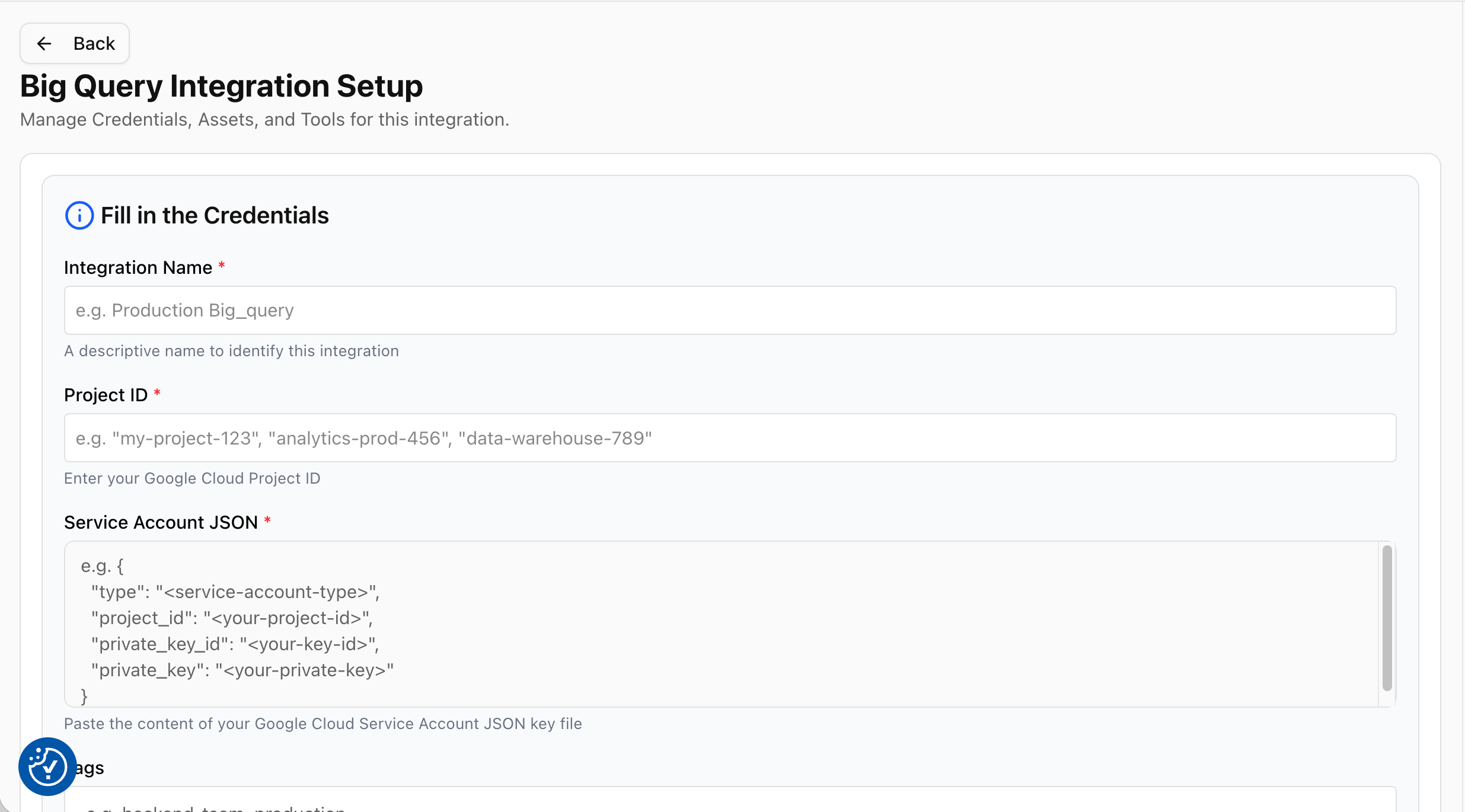
On **Big Query Integration Setup**, fill in:
| Field | Description |
| ------------------------ | --------------------------------------------------------------------------------------------------------------------------------------------------------------- |
| **Integration Name** | A label for this connector (e.g. `Production BigQuery`). |
| **Project ID** | Your Google Cloud project ID (e.g. `my-project-123`). Must match the project in your service account JSON. |
| **Service Account JSON** | Paste the **entire** JSON key file from GCP. Include all fields (`type`, `project_id`, `private_key`, `client_email`, etc.). Do not paste only the private key. |
Click **Test connection**, then **Save**.
**Test connection** checks that DrDroid can authenticate and **list at least one dataset** in the project. If the project has no datasets, or the service account cannot see any, the test fails even when the JSON is valid.
## Create a service account
1. In [Google Cloud Console](https://console.cloud.google.com/), go to **IAM & Admin → Service Accounts**.
2. Create a service account (e.g. `drdroid-bigquery-reader`).
3. Create a JSON key: **Keys → Add key → Create new key → JSON**. Download and store it securely.
### Required IAM roles
Grant these on the **GCP project** (or tighter, as described below):
| Role | ID | Why |
| ------------------------ | --------------------------- | --------------------------------------------------------- |
| **BigQuery Job User** | `roles/bigquery.jobUser` | Run queries (creates query jobs). |
| **BigQuery Data Viewer** | `roles/bigquery.dataViewer` | Read table data and list datasets the account can access. |
Example (project-wide, simplest setup):
```bash theme={null}
export PROJECT_ID="your-project-id"
export SA_EMAIL="drdroid-bigquery-reader@${PROJECT_ID}.iam.gserviceaccount.com"
gcloud projects add-iam-policy-binding $PROJECT_ID \
--member="serviceAccount:${SA_EMAIL}" \
--role="roles/bigquery.jobUser"
gcloud projects add-iam-policy-binding $PROJECT_ID \
--member="serviceAccount:${SA_EMAIL}" \
--role="roles/bigquery.dataViewer"
```
### Restrict access to specific datasets (recommended)
For least privilege, keep **BigQuery Job User** on the project, and grant **BigQuery Data Viewer** only on datasets the agent should use:
```bash theme={null}
bq add-iam-policy-binding PROJECT_ID:DATASET_ID \
--member="serviceAccount:${SA_EMAIL}" \
--role="roles/bigquery.dataViewer"
```
Replace `PROJECT_ID` and `DATASET_ID` with your values. Repeat for each dataset. The service account must still be able to **see at least one dataset** for the connection test to pass.
## Enable the BigQuery API
```bash theme={null}
gcloud services enable bigquery.googleapis.com --project=$PROJECT_ID
```
## Querying
After the connector is saved, DroidAgent can run BigQuery SQL during investigations (read-only `SELECT` queries against datasets you granted access to).
## Connection via dashboard
Open **Agent Setup → Integrations → BigQuery**, or go to [aiops.drdroid.io/integrations/big\_query](https://aiops.drdroid.io/integrations/big_query).
On **Big Query Integration Setup**, fill in:
| Field | Description |
| ------------------------ | --------------------------------------------------------------------------------------------------------------------------------------------------------------- |
| **Integration Name** | A label for this connector (e.g. `Production BigQuery`). |
| **Project ID** | Your Google Cloud project ID (e.g. `my-project-123`). Must match the project in your service account JSON. |
| **Service Account JSON** | Paste the **entire** JSON key file from GCP. Include all fields (`type`, `project_id`, `private_key`, `client_email`, etc.). Do not paste only the private key. |
Click **Test connection**, then **Save**.
**Test connection** checks that DrDroid can authenticate and **list at least one dataset** in the project. If the project has no datasets, or the service account cannot see any, the test fails even when the JSON is valid.
## Create a service account
1. In [Google Cloud Console](https://console.cloud.google.com/), go to **IAM & Admin → Service Accounts**.
2. Create a service account (e.g. `drdroid-bigquery-reader`).
3. Create a JSON key: **Keys → Add key → Create new key → JSON**. Download and store it securely.
### Required IAM roles
Grant these on the **GCP project** (or tighter, as described below):
| Role | ID | Why |
| ------------------------ | --------------------------- | --------------------------------------------------------- |
| **BigQuery Job User** | `roles/bigquery.jobUser` | Run queries (creates query jobs). |
| **BigQuery Data Viewer** | `roles/bigquery.dataViewer` | Read table data and list datasets the account can access. |
Example (project-wide, simplest setup):
```bash theme={null}
export PROJECT_ID="your-project-id"
export SA_EMAIL="drdroid-bigquery-reader@${PROJECT_ID}.iam.gserviceaccount.com"
gcloud projects add-iam-policy-binding $PROJECT_ID \
--member="serviceAccount:${SA_EMAIL}" \
--role="roles/bigquery.jobUser"
gcloud projects add-iam-policy-binding $PROJECT_ID \
--member="serviceAccount:${SA_EMAIL}" \
--role="roles/bigquery.dataViewer"
```
### Restrict access to specific datasets (recommended)
For least privilege, keep **BigQuery Job User** on the project, and grant **BigQuery Data Viewer** only on datasets the agent should use:
```bash theme={null}
bq add-iam-policy-binding PROJECT_ID:DATASET_ID \
--member="serviceAccount:${SA_EMAIL}" \
--role="roles/bigquery.dataViewer"
```
Replace `PROJECT_ID` and `DATASET_ID` with your values. Repeat for each dataset. The service account must still be able to **see at least one dataset** for the connection test to pass.
## Enable the BigQuery API
```bash theme={null}
gcloud services enable bigquery.googleapis.com --project=$PROJECT_ID
```
## Querying
After the connector is saved, DroidAgent can run BigQuery SQL during investigations (read-only `SELECT` queries against datasets you granted access to).