> ## Documentation Index
> Fetch the complete documentation index at: https://docs.drdroid.io/llms.txt
> Use this file to discover all available pages before exploring further.
# Email
### Step 1: Setup Email as Data Source:
1. Create an app with the Google account that will be configured in our platform as the source ([https://myaccount.google.com/apppasswords](https://myaccount.google.com/apppasswords)). You will have to turn-on 2FA for that account to get this feature.
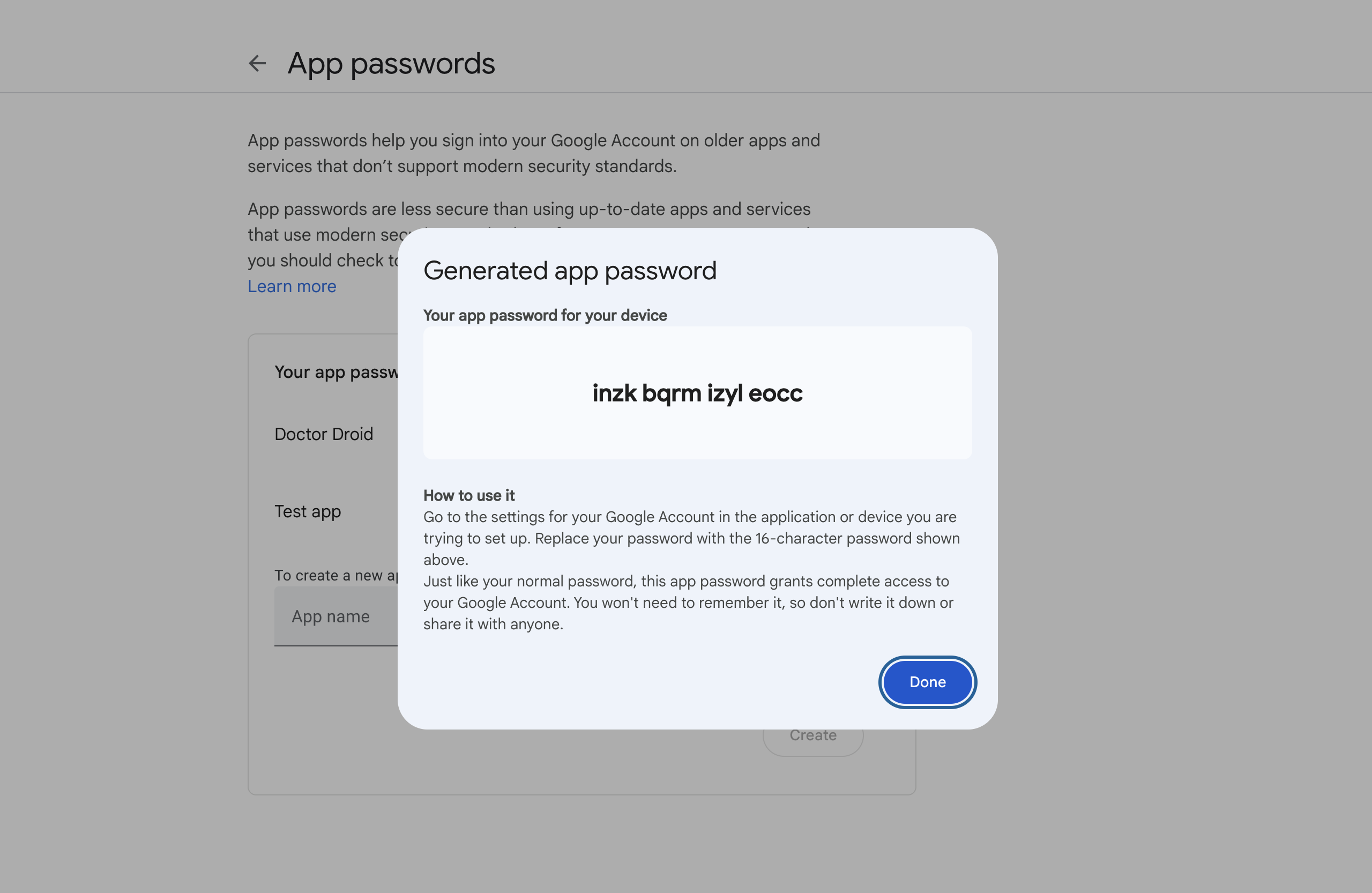 This is the password that we need to add in the Data Source Configuration Page. Save these credentials somewhere, and click on done.
2. Add Email Server as an integration in the Integrations Page.
This is the password that we need to add in the Data Source Configuration Page. Save these credentials somewhere, and click on done.
2. Add Email Server as an integration in the Integrations Page.
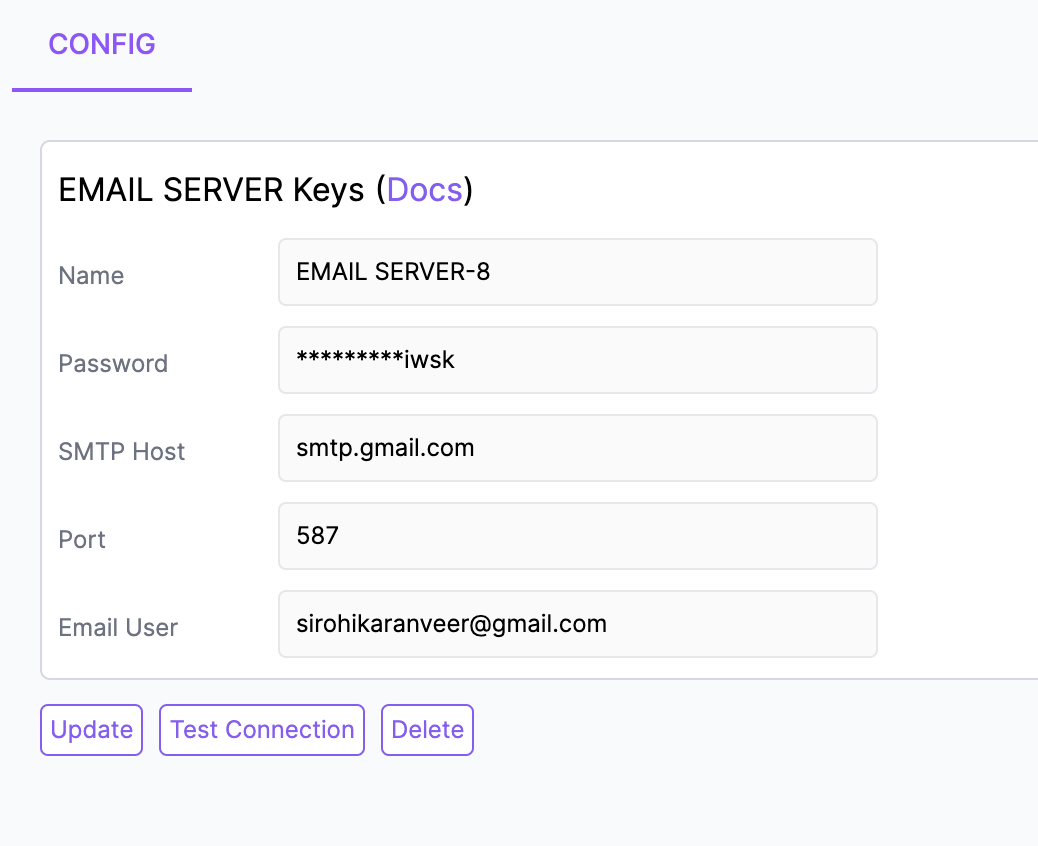 Put the app password as **Password** while configuring the Email Server Integration.
The **Port** and **SMTP Host** remain the same as shown for Gmail.
Follow the same steps for Outlook the only changes are the port should be changed to smtp-mail.outlook.com.
Put the app password as **Password** while configuring the Email Server Integration.
The **Port** and **SMTP Host** remain the same as shown for Gmail.
Follow the same steps for Outlook the only changes are the port should be changed to smtp-mail.outlook.com.