> ## Documentation Index
> Fetch the complete documentation index at: https://docs.drdroid.io/llms.txt
> Use this file to discover all available pages before exploring further.
# Jenkins
> Connect DrDroid to Jenkins to inspect builds and jobs during investigations.
DrDroid connects to Jenkins so DroidAgent can fetch job and build context when debugging deployment or CI failures. Add the integration from the [Jenkins setup page](https://aiops.drdroid.io/integrations/jenkins) or through the VPC agent.
## Connection via dashboard
Open **Agent Setup → Integrations → Jenkins**, or go directly to [aiops.drdroid.io/integrations/jenkins](https://aiops.drdroid.io/integrations/jenkins).
Choose the authentication type that matches your Jenkins setup:
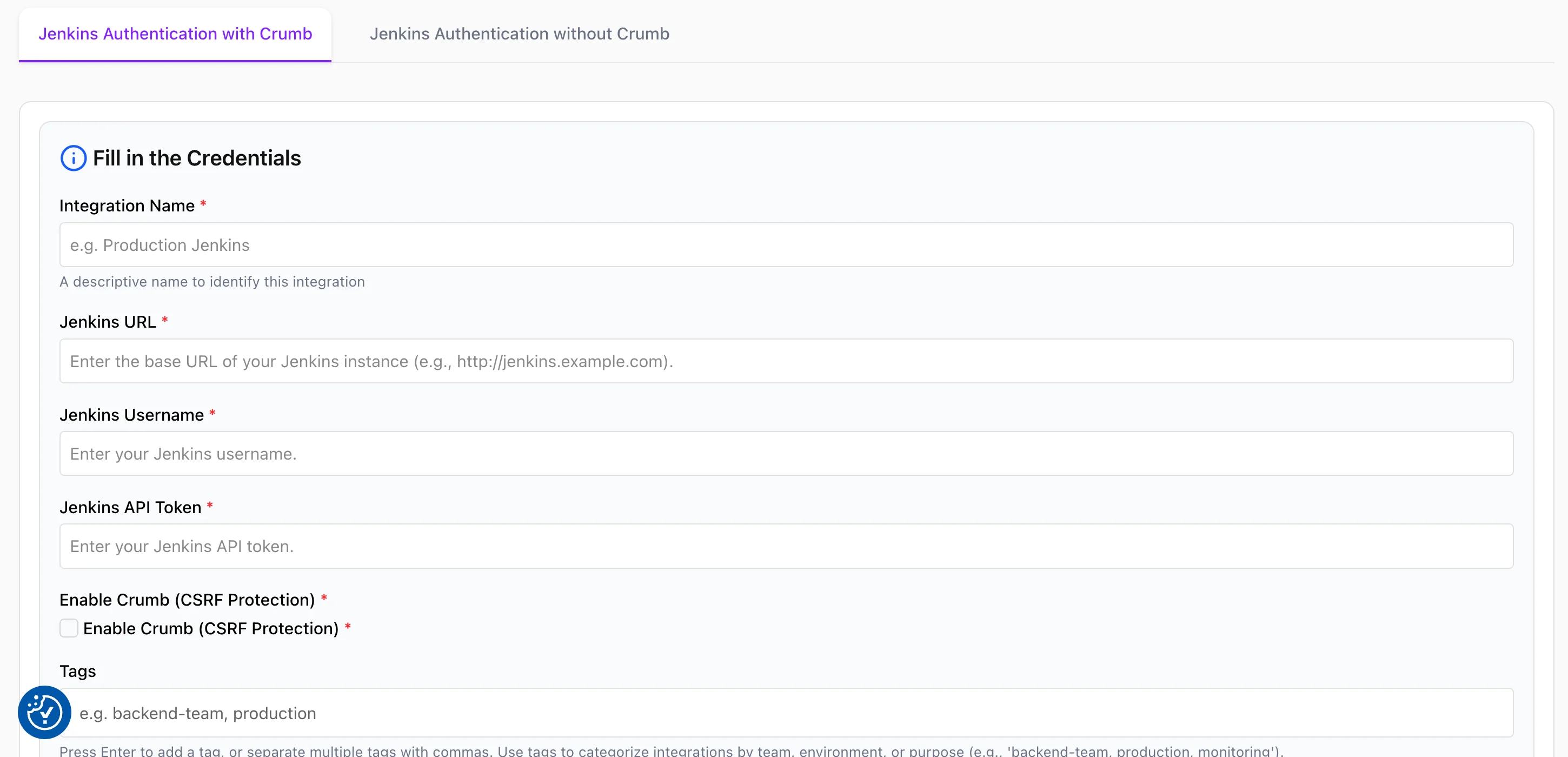 ### Jenkins Authentication with Crumb
Use this when your Jenkins instance has CSRF protection enabled (the default on many installations).
| Field | Description |
| ---------------------------------- | ---------------------------------------------------------------------------------------------------- |
| **Integration Name** | A label for this connector (e.g. `Production Jenkins`). |
| **Jenkins URL** | Base URL of your Jenkins server, e.g. `https://jenkins.example.com`. Do not include a trailing path. |
| **Jenkins Username** | Jenkins user with permission to read jobs and builds. |
| **Jenkins API Token** | API token for that user (see below). |
| **Enable Crumb (CSRF Protection)** | Turn on so DrDroid sends a valid crumb with each request. |
Save and test the connection.
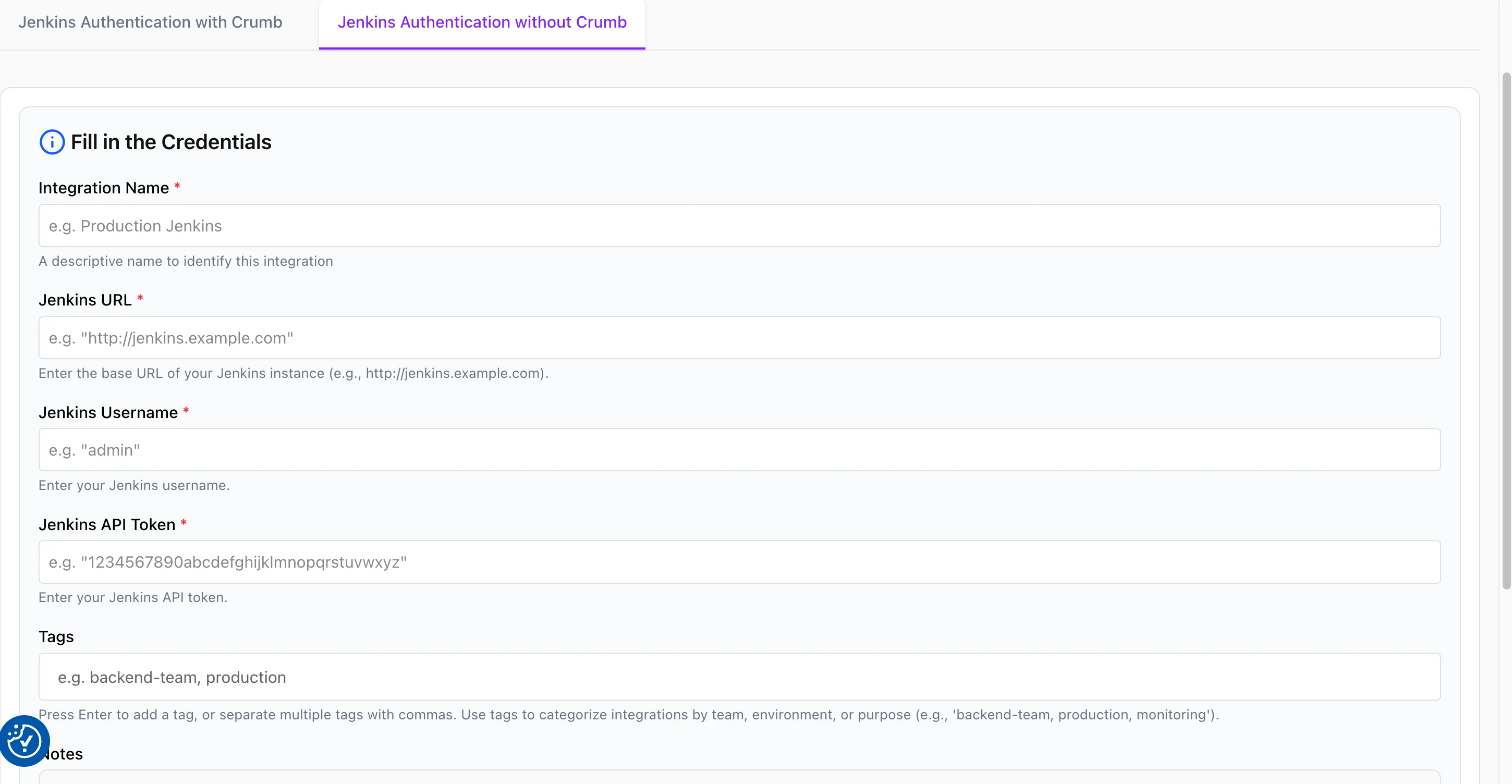
### Jenkins Authentication without Crumb
Use this when CSRF protection is disabled or your Jenkins version does not require crumbs for API access.
Fill in **Integration Name**, **Jenkins URL**, **Jenkins Username**, and **Jenkins API Token** the same way as above. Do not enable crumb handling for this connection type.
### Jenkins Authentication with Crumb
Use this when your Jenkins instance has CSRF protection enabled (the default on many installations).
| Field | Description |
| ---------------------------------- | ---------------------------------------------------------------------------------------------------- |
| **Integration Name** | A label for this connector (e.g. `Production Jenkins`). |
| **Jenkins URL** | Base URL of your Jenkins server, e.g. `https://jenkins.example.com`. Do not include a trailing path. |
| **Jenkins Username** | Jenkins user with permission to read jobs and builds. |
| **Jenkins API Token** | API token for that user (see below). |
| **Enable Crumb (CSRF Protection)** | Turn on so DrDroid sends a valid crumb with each request. |
Save and test the connection.
### Jenkins Authentication without Crumb
Use this when CSRF protection is disabled or your Jenkins version does not require crumbs for API access.
Fill in **Integration Name**, **Jenkins URL**, **Jenkins Username**, and **Jenkins API Token** the same way as above. Do not enable crumb handling for this connection type.
 ## Create a Jenkins API token
1. Sign in to Jenkins as the user you will connect with.
2. Open your user menu → **Configure** (or **Settings**).
3. Under **API Token**, click **Add new Token**, name it (e.g. `drdroid`), and generate it.
4. Copy the token once and paste it into **Jenkins API Token** in DrDroid. You cannot view it again after leaving the page.
Use a dedicated service account or bot user with read access to the jobs and folders the agent should inspect.
## Connection via VPC agent
If you run DrDroid through the [VPC agent](https://github.com/DrDroidLab/drd-vpc-agent), add a Jenkins entry to your `secrets.yaml`:
```yaml theme={null}
connector_name:
type: "JENKINS" # do not change
url: https://jenkins.example.com
username: your_jenkins_username
api_token: your_api_token
crumb: "true" # optional — "true" if CSRF crumbs are required, "false" otherwise (default)
```
See the [Jenkins section](https://github.com/DrDroidLab/drd-vpc-agent/blob/main/credentials/credentials_template.yaml#L105) in the credentials template.
Restart or reload the agent after updating secrets.
## Permissions
Grant the connected user **Read** access on the jobs, folders, and views you want available during investigations. Avoid admin-only accounts unless your security policy requires it.
## Create a Jenkins API token
1. Sign in to Jenkins as the user you will connect with.
2. Open your user menu → **Configure** (or **Settings**).
3. Under **API Token**, click **Add new Token**, name it (e.g. `drdroid`), and generate it.
4. Copy the token once and paste it into **Jenkins API Token** in DrDroid. You cannot view it again after leaving the page.
Use a dedicated service account or bot user with read access to the jobs and folders the agent should inspect.
## Connection via VPC agent
If you run DrDroid through the [VPC agent](https://github.com/DrDroidLab/drd-vpc-agent), add a Jenkins entry to your `secrets.yaml`:
```yaml theme={null}
connector_name:
type: "JENKINS" # do not change
url: https://jenkins.example.com
username: your_jenkins_username
api_token: your_api_token
crumb: "true" # optional — "true" if CSRF crumbs are required, "false" otherwise (default)
```
See the [Jenkins section](https://github.com/DrDroidLab/drd-vpc-agent/blob/main/credentials/credentials_template.yaml#L105) in the credentials template.
Restart or reload the agent after updating secrets.
## Permissions
Grant the connected user **Read** access on the jobs, folders, and views you want available during investigations. Avoid admin-only accounts unless your security policy requires it.