
Connection via dashboard
Open Agent Setup → Integrations → Jenkins, or go directly to aiops.drdroid.io/integrations/jenkins. Choose the authentication type that matches your Jenkins setup: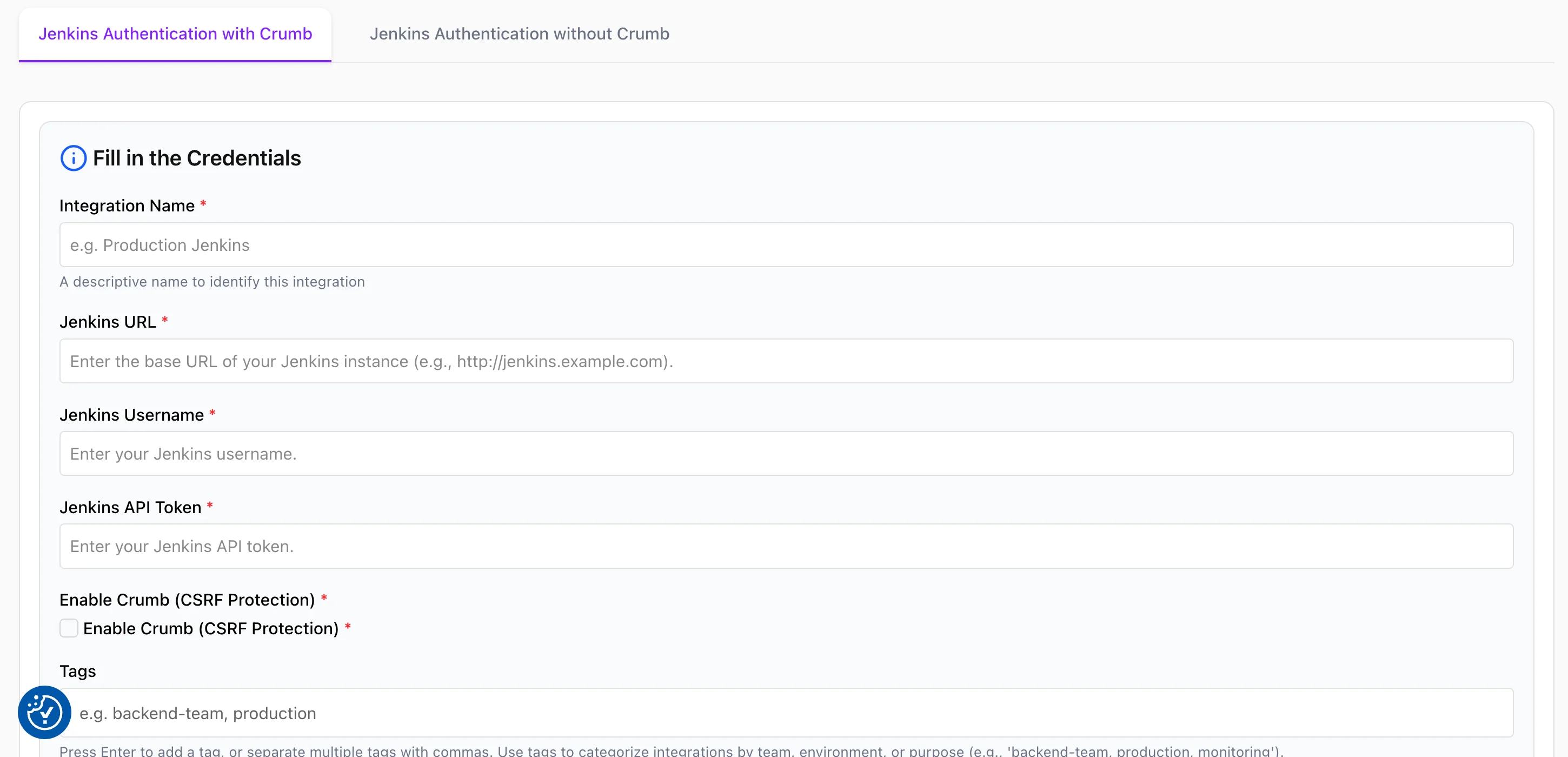
Jenkins Authentication with Crumb
Use this when your Jenkins instance has CSRF protection enabled (the default on many installations).
Save and test the connection.
Jenkins Authentication without Crumb
Use this when CSRF protection is disabled or your Jenkins version does not require crumbs for API access. Fill in Integration Name, Jenkins URL, Jenkins Username, and Jenkins API Token the same way as above. Do not enable crumb handling for this connection type.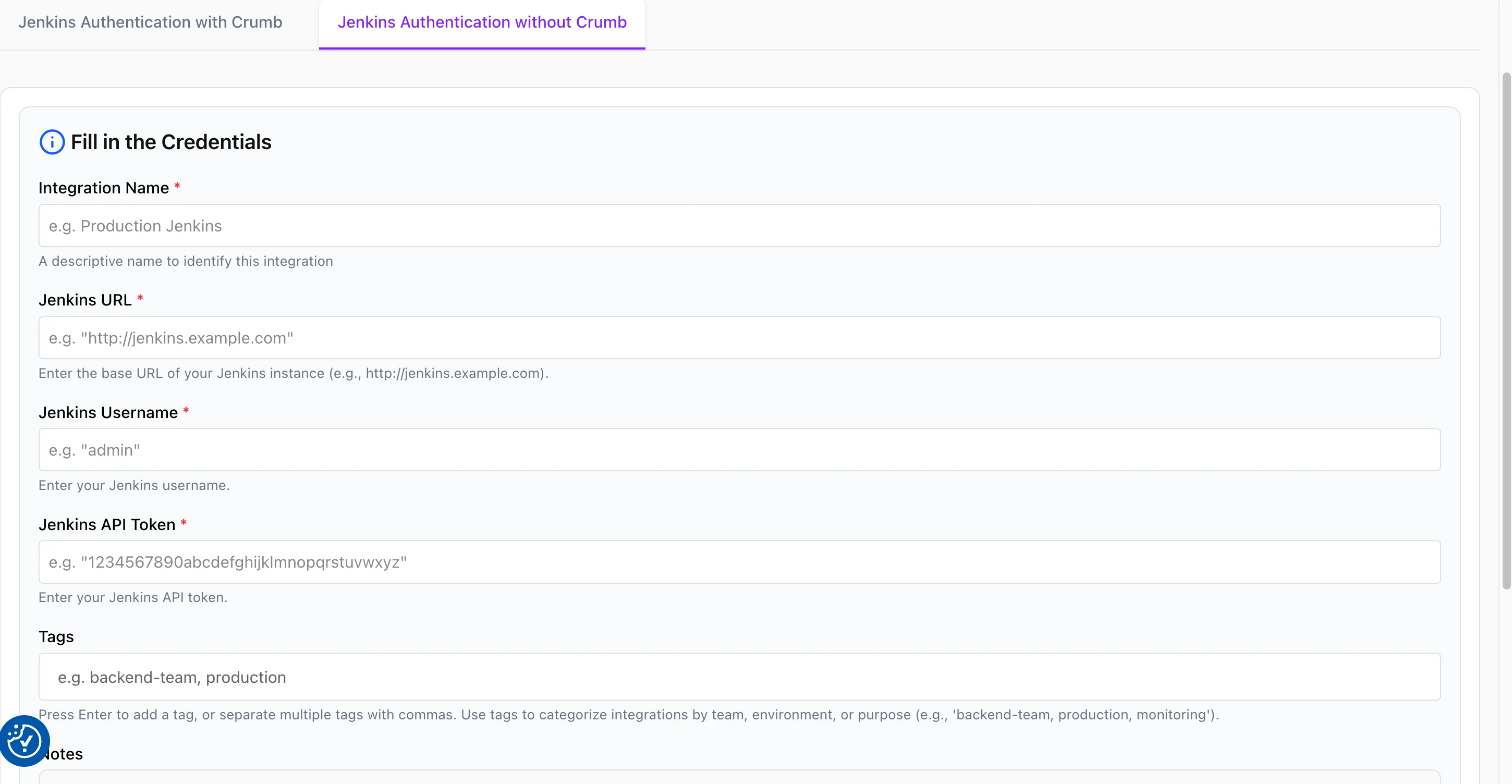
Create a Jenkins API token
- Sign in to Jenkins as the user you will connect with.
- Open your user menu → Configure (or Settings).
- Under API Token, click Add new Token, name it (e.g.
drdroid), and generate it. - Copy the token once and paste it into Jenkins API Token in DrDroid. You cannot view it again after leaving the page.
Connection via VPC agent
If you run DrDroid through the VPC agent, add a Jenkins entry to yoursecrets.yaml: